Internationalization (i18n)
Modularized ADITO modules support language-specific files and translation workflows. This page outlines conventions, tools, and special cases for multilingual projects.
Language Files and Merging
Each module maintains its own language files under the language directory. The naming convention is:
_____LANGUAGE_<language>[_<country>[_<variant>]]_<module>
Examples for the module activity:
_____LANGUAGE_de_activity_____LANGUAGE_de_AT_activity
In your project, language file names do not include the module name:
_____LANGUAGE_de_____LANGUAGE_de_AT
Within these project language files, you can view all keys from all modules alongside their originating module.
Even though you can see keys and values from all dependencies, only keys that belong to the current package are editable.
During transpilation, the Designer automatically merges language files:
- All
_____LANGUAGE_de_<module>files are combined into a single_____LANGUAGE_deartifact. - All
_____LANGUAGE_de_AT_<module>files are combined into a single_____LANGUAGE_de_ATartifact. - The merged files are written to the
distfolder.
Language resolution for merging is based on language, country, and variant.
Overriding Keys
Language files from other modules are read-only. If a key's value must differ in your project or module, override it instead of modifying the source module.
To override a key in the Designer:
- Open any language file in your current module.
- Right-click the desired key. You can also select multiple keys at once.
- Choose "Override Keys" from the context menu.
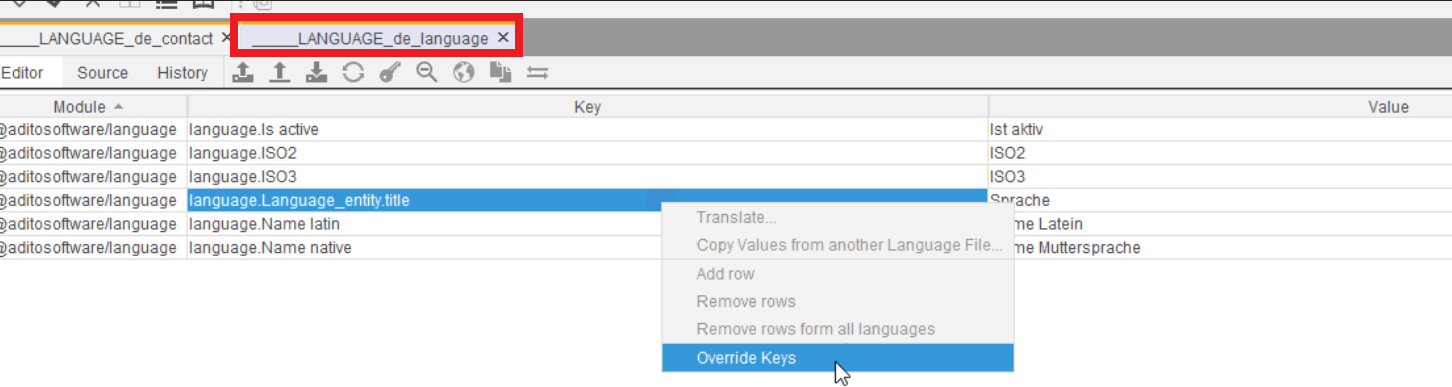
Figure: Selecting override entries from a shared module
The Designer inserts the selected key(s) and current value(s) into the appropriate language file of your module, navigates there, and selects them for editing. You can then adjust the key and/or value.
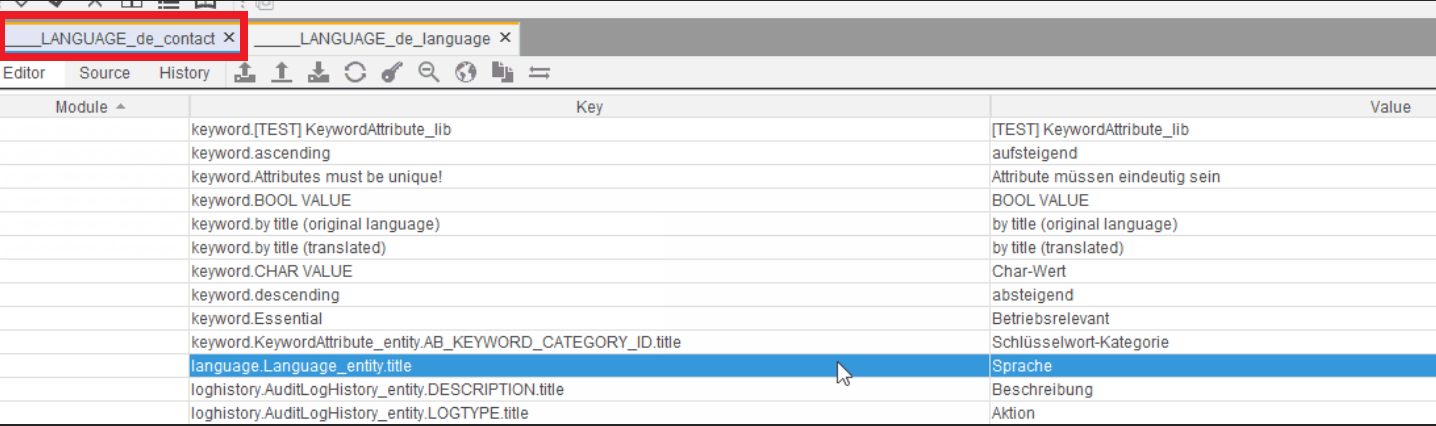
Figure: Overridden entries are transferred to the current module's language file
During transpilation, overridden keys are merged and take precedence over originals.
Tooling and Analysis
The Designer provides tools to manage and analyze language keys. For certain actions, the "Dependencies" dialog appears, allowing you to control search scope and accuracy.
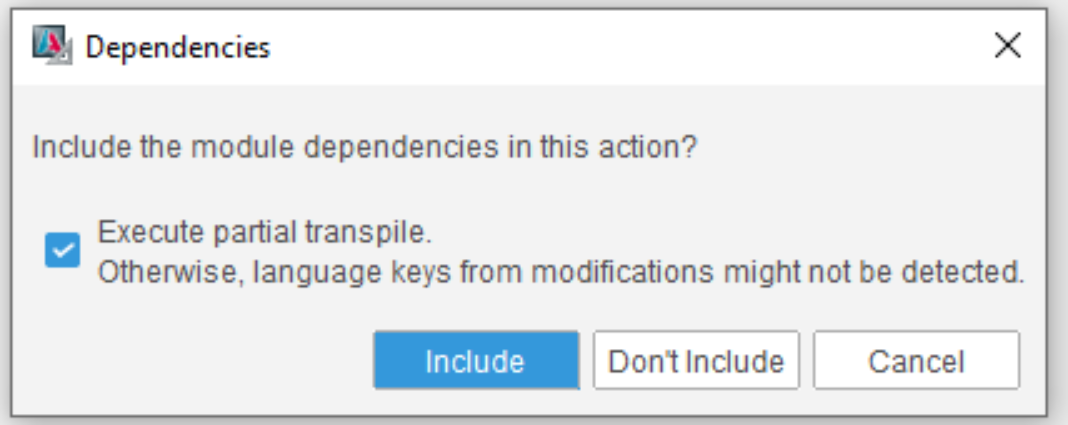
Figure: The "Dependencies" dialog
Appears during:
- Extract Keys
- Refresh / Sync
- Find Unused Keys
Options:
- Execute partial transpile: Reads from the
distfolder so that Modifications and Extension Points are scanned correctly. Without this, keys defined via Modifications (e.g., an entity title change) will be missed. - Button Include: Search in the current package and all dependencies.
- Button Don't Include: Search only in the current package.
Keep "Execute partial transpile" enabled for accurate results, especially when using Modifications or Extension Points.
While "Don't Include" is enough in many cases, using "Include" in projects is often beneficial to:
- Identify keys from modules that were unintentionally left untranslated.
- Verify that all required translations are maintained at the project level.
- Detect keys present in a module's language file but missing in some available languages.
Introducing New Languages
When you add a new language to a project or module, create the corresponding language file as usual.
To then find all keys from included modules that don't yet support this language, either extract the keys using "Extract Keys" or pull them in via "Refresh." Make sure to run a transpile and include dependencies; otherwise, keys from modules won't be correctly picked up.
You can normally translate the keys from your now filled language file.